
Where Is the CLAUDE.md File? Locations, Examples, and Best Practices for Claude Code
claude.md is typically at ~/.claude/claude.md (global) or ./claude.md in your project root. Here's exactly where to find it on Mac, Windows, and Linux.

If you've started using Claude Code and keep seeing references to a mysterious "CLAUDE.md" file, you're not alone. It's the single most important configuration file in the entire Claude Code workflow — and where it lives, how many of them you can have, and what you put inside them determines how well Claude understands your project.
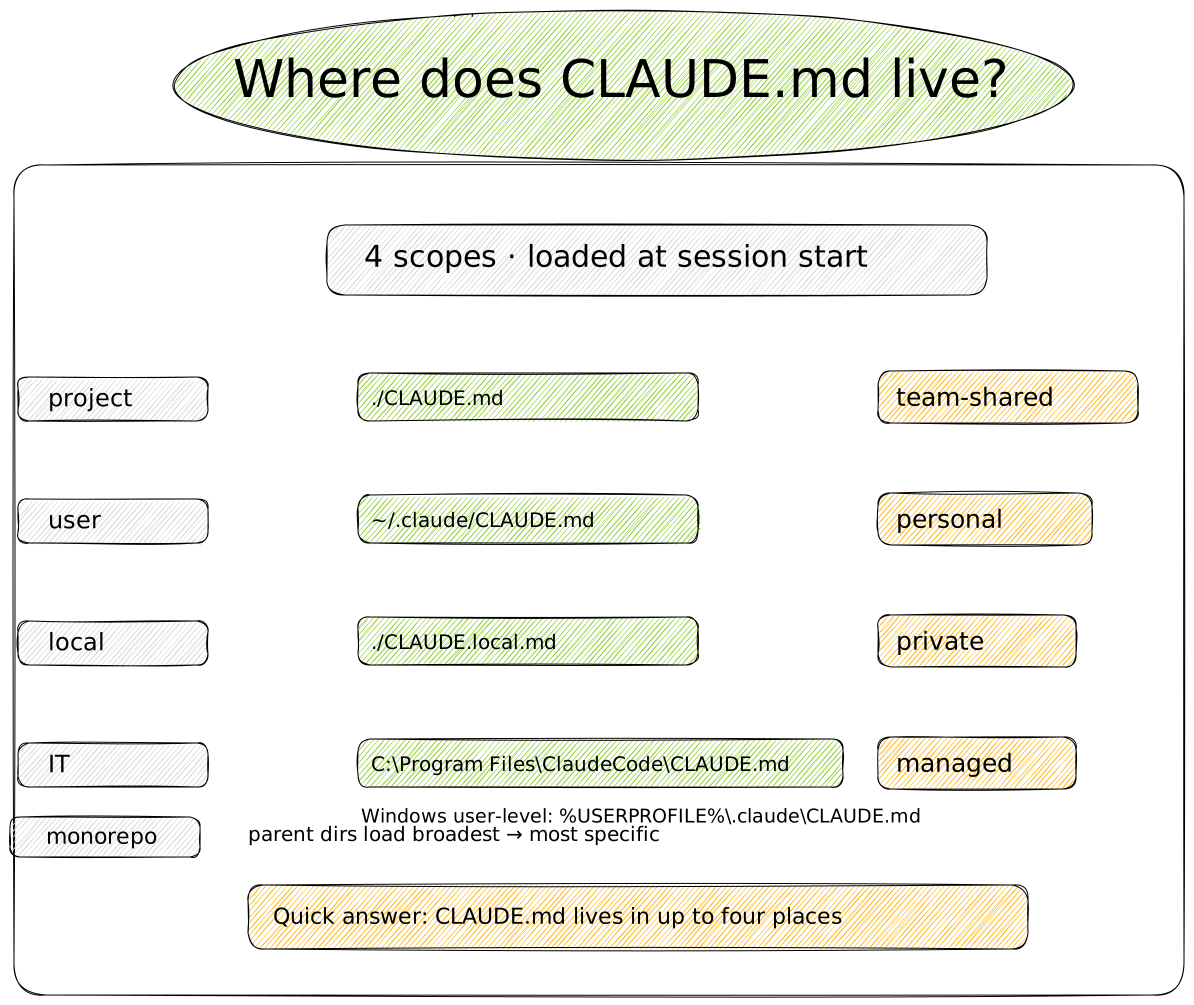
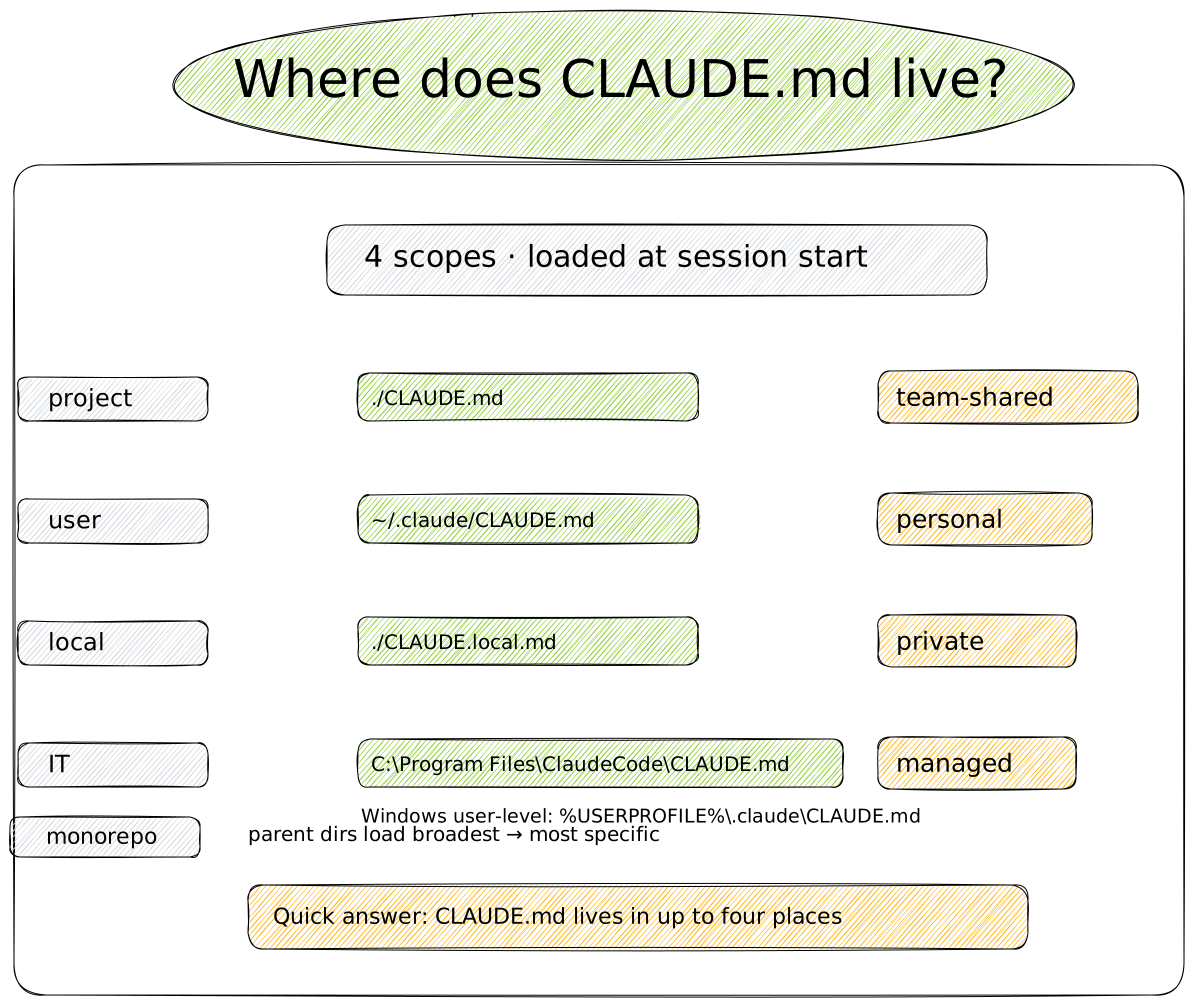
Quick answer: CLAUDE.md lives in up to four places — ./CLAUDE.md in your project root (team-shared), ~/.claude/CLAUDE.md (your personal, all projects), ./CLAUDE.local.md (private, project-specific), and an enterprise managed-policy path. Details and OS-specific paths below.
You can use the following file paths to control which scope a CLAUDE.md applies to:
(1) Project-level — team-shared, lives in the repo root
./CLAUDE.md
(2) User-level — personal, applies to every project
~/.claude/CLAUDE.md
(3) Local — personal and project-specific, gitignored
./CLAUDE.local.md
(4) Enterprise — IT-managed policy, fixed location per OS
# Linux/WSL
/etc/claude-code/CLAUDE.md

# macOS
/Library/Application Support/ClaudeCode/CLAUDE.md

# Windows
C:\Program Files\ClaudeCode\CLAUDE.md
It's the equivalent of onboarding notes for a new teammate, except the teammate is Claude, and it reads those notes fresh every single time.
In this guide
- What Is CLAUDE.md?
- Where Is the CLAUDE.md File Located? — the four scopes, with paths
- Where Does Claude Code Look for CLAUDE.md? (Loading Order)
- Claude Home Directory on Windows
- CLAUDE.md Example — a working template
- Best CLAUDE.md Examples: What Makes One Actually Work
- Finding CLAUDE.md Templates on GitHub
- The Claude Rules Folder:
.claude/rules/ - Best CLAUDE.md Rules: Practical Guardrails
- CLAUDE.md vs. Auto Memory
- Troubleshooting: Claude Isn't Following My CLAUDE.md
- FAQ
What Is CLAUDE.md?
CLAUDE.md is a plain markdown file that gives Claude Code persistent instructions about your project. Every Claude Code session starts with a completely empty context window — Claude has no memory of your codebase, your conventions, or your preferences from a previous session. CLAUDE.md solves that: Claude automatically reads it at the start of every session, so things like build commands, coding standards, and architectural decisions don't need to be re-explained every time.
Where Is the CLAUDE.md File Located?
This is the question most people are actually searching for — "where is my claude.md file?", "where does claude.md go?", "where is claude.md stored?" — and the honest answer is: it depends on the scope you want. Claude Code looks for CLAUDE.md in four different places, each with a different purpose.
| Scope | File Path | Who It's For | Shared With |
|---|---|---|---|
| Organization-wide (managed policy) | macOS: /Library/Application Support/ClaudeCode/CLAUDE.mdLinux/WSL: /etc/claude-code/CLAUDE.mdWindows: C:\Program Files\ClaudeCode\CLAUDE.md |
IT/DevOps enforcing company-wide rules | Every user on the machine |
| User-level (personal) | ~/.claude/CLAUDE.md |
Your personal preferences across all projects | Just you |
| Project-level | ./CLAUDE.md or ./.claude/CLAUDE.md |
Team-shared instructions for one repository | Whole team, via git |
| Local (personal + project-specific) | ./CLAUDE.local.md |
Your private notes for one project (sandbox URLs, test data) | Just you, one project |
A few important details:
- You can have more than one. Claude Code loads CLAUDE.md and CLAUDE.local.md from your current directory and every parent directory above it. If you launch Claude inside
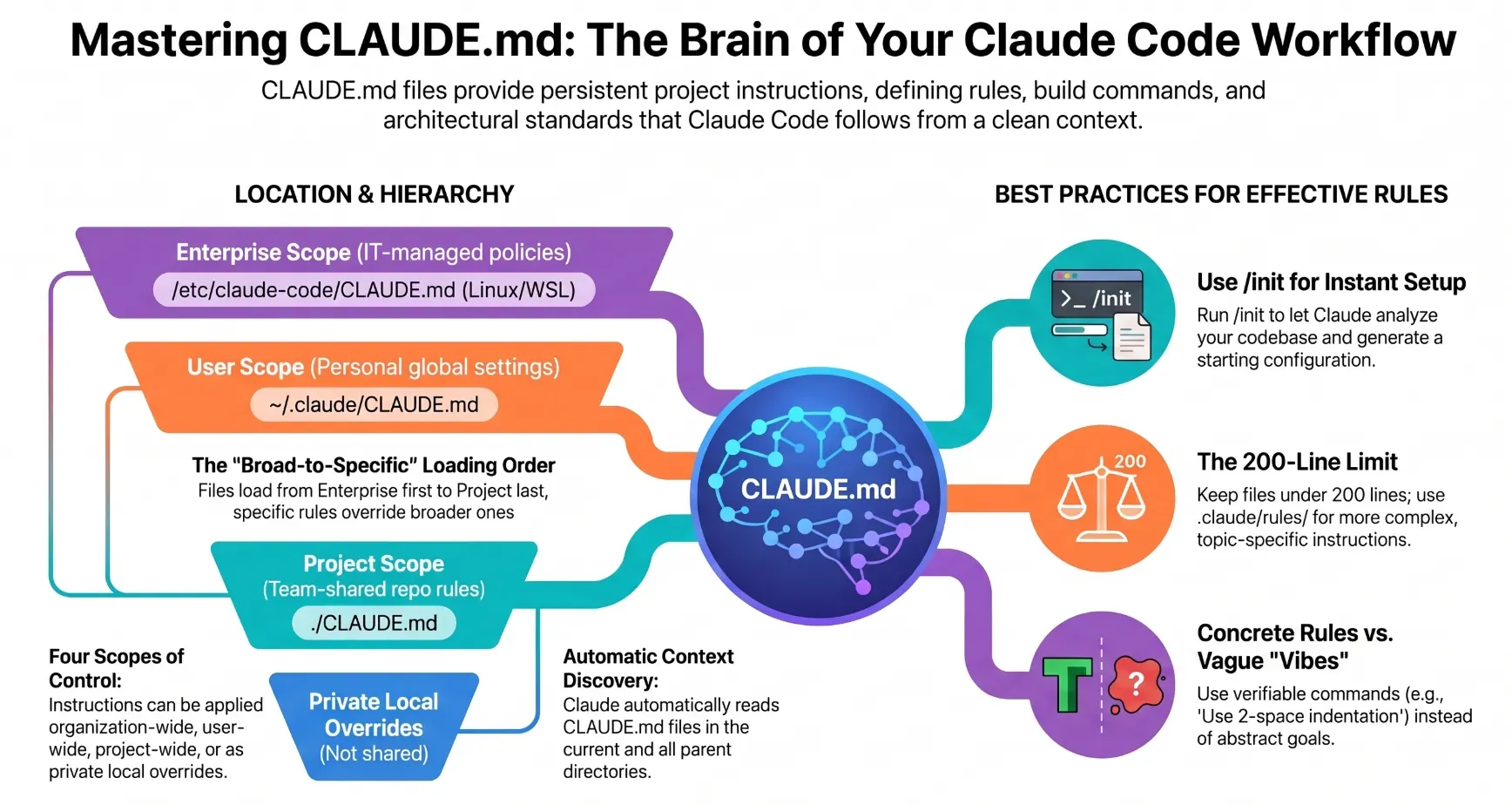
foo/bar/, it loads instructions fromfoo/CLAUDE.md,foo/bar/CLAUDE.md, and any local files alongside them — all concatenated together. - Order matters. Files are read from the broadest scope down to the most specific, so a project-level instruction is read after (and effectively takes priority in context over) your personal user-level file.
- Subdirectory CLAUDE.md files load on demand. If your project has a
CLAUDE.mdsitting inside a subfolder Claude hasn't touched yet, it isn't loaded at launch — Claude picks it up only when it actually reads files in that folder. - To confirm which CLAUDE.md files actually loaded into your current session, run
/contextand check the Memory files section.
Where Does Claude Code Look for CLAUDE.md? (Loading Order)
Putting the table above into the exact sequence Claude Code uses at session start:
- Enterprise managed policy — the IT-controlled file (
/etc/claude-code/CLAUDE.mdon Linux,C:\Program Files\ClaudeCode\CLAUDE.mdon Windows,/Library/Application Support/ClaudeCode/CLAUDE.mdon macOS). - User-level —
~/.claude/CLAUDE.md(your personal preferences, every project). - Parent directories, broadest first — any
CLAUDE.mdin folders above your working directory, root-most first. - Project root —
./CLAUDE.mdor./.claude/CLAUDE.md, plus./CLAUDE.local.mdalongside it.
Files later in this list are read later and sit closer to the front of Claude's context, so project-level rules effectively win over user-level ones when they conflict. Verify the actual loaded set anytime with /context → Memory files.
Claude Home Directory on Windows
On Windows, the ~/.claude shorthand used throughout Claude Code's documentation resolves to:
%USERPROFILE%\.claude
That's typically C:\Users\<YourUsername>\.claude. This is where your personal CLAUDE.md, settings.json, skills, rules, and other user-scoped configuration live — the same directory that's referred to as ~/.claude on macOS and Linux.
If you've set the CLAUDE_CONFIG_DIR environment variable, every ~/.claude path (including CLAUDE.md) moves to that custom directory instead, on any OS. The organization-wide managed policy file on Windows sits at a separate, fixed location: C:\Program Files\ClaudeCode\CLAUDE.md, and it's controlled by IT rather than the individual developer.
CLAUDE.md Example
Here's what a well-structured project CLAUDE.md actually looks like in practice, for a TypeScript/React project — a solid starting claude.md example you can adapt:
    # Project conventions

    ## Commands
    - Build: `npm run build`
    - Test: `npm test`
    - Lint: `npm run lint`

    ## Stack
    - TypeScript with strict mode
    - React 19, functional components only

    ## Rules
    - Named exports, never default exports
    - Tests live next to source: `foo.ts` -> `foo.test.ts`
    - All API routes return `{ data, error }` shape
Notice what's not in there: no long prose paragraphs, no restating things Claude can already figure out by reading your code (like your full directory structure), and no vague guidance like "write good code." Every line is something Claude genuinely couldn't infer on its own, phrased as a concrete, checkable rule.
The Fastest Way to Generate One: /init
You don't have to write your first CLAUDE.md from scratch. Inside a Claude Code session, run:
/init
Claude analyzes your codebase and writes a starting CLAUDE.md with the build commands, test instructions, and conventions it can detect automatically. If a CLAUDE.md already exists, /init suggests improvements instead of overwriting it. Treat the generated file as a first draft — refine it with the things Claude genuinely couldn't discover on its own, like team-specific workflow rules or architectural decisions that aren't obvious from the code.
Best CLAUDE.md Examples: What Makes One Actually Work
Searching for "best CLAUDE.md examples" usually means looking for templates, but the better question is what principles make any CLAUDE.md effective. Since CLAUDE.md is loaded as context rather than enforced like a hard rule, how you write it directly affects how consistently Claude follows it.
Keep it short. Aim for under 200 lines. Longer files consume more of the context window and tend to reduce how reliably Claude follows the instructions inside them. If your file keeps growing, that's a signal to split content into a rules folder instead.
Structure it with headers and bullets. Claude scans a well-organized CLAUDE.md the same way a human does — grouped sections beat dense paragraphs.
Be concrete and verifiable. Compare these two instructions:
- ❌ "Format code properly"
- ✅ "Use 2-space indentation"
- ❌ "Test your changes"
- ✅ "Run
npm testbefore committing"
The second version in each pair gives Claude something it can actually check against, rather than something open to interpretation.
Avoid contradictions. If your root CLAUDE.md says one thing and a nested subdirectory CLAUDE.md says another, Claude may pick one arbitrarily. Periodically review your files — including any rules files — to catch outdated or conflicting guidance. In large monorepos, use the claudeMdExcludes setting to skip CLAUDE.md files from teams whose conventions don't apply to your work.
Only put session-wide facts in CLAUDE.md. Build commands, project layout, and "always do X" conventions belong here. A multi-step procedure that only matters for one specific workflow belongs in a skill instead; a convention that only applies to one part of the codebase belongs in a path-scoped rule.
Finding CLAUDE.md Templates on GitHub
There's no single official "CLAUDE.md download" — it's meant to be written for your specific project, not copy-pasted wholesale. That said, plenty of open-source repositories commit their CLAUDE.md files publicly, and searching GitHub for filename:CLAUDE.md surfaces real-world examples across different languages and frameworks, which is a genuinely useful way to see conventions in the wild before writing your own.
If your team already maintains an AGENTS.md file for other AI coding tools, you don't need to duplicate content. Claude Code specifically reads CLAUDE.md, not AGENTS.md, so the standard pattern is to import it:
@AGENTS.md

## Claude Code

Use plan mode for changes under `src/billing/`.
On macOS and Linux, a symlink works too:
ln -s AGENTS.md CLAUDE.md
(On Windows, symlinks need Administrator privileges or Developer Mode, so the @AGENTS.md import is the simpler route.) Running /init also automatically detects and incorporates rules from Cursor (.cursor/rules/), GitHub Copilot (.github/copilot-instructions.md), and similar tools when it generates your file.
The Claude Rules Folder: .claude/rules/
Once a project CLAUDE.md starts creeping toward that 200-line ceiling, the .claude/rules/ folder is the answer. It lets you split instructions into topic-specific markdown files instead of one growing monolith:
    your-project/
    ├── .claude/
    │   ├── CLAUDE.md           # Main project instructions
    │   └── rules/
    │       ├── code-style.md
    │       ├── testing.md
    │       └── security.md
    ```

    Rules come in two flavors:

    - **Unconditional rules** — files without any special frontmatter load at session start, exactly like CLAUDE.md.
    - **Path-specific rules** — using `paths:` frontmatter, a rule only loads into context when Claude is actually working with a matching file, keeping noise out of sessions where it isn't relevant:

    ```markdown
    ---
    paths:
      - "src/api/**/*.ts"
---

# API Development Rules

- All API endpoints must include input validation
- Use the standard error response format
- Include OpenAPI documentation comments
Rules also exist at the user level (~/.claude/rules/), applying to every project on your machine, and they can be shared across projects with symlinks — handy if your organization maintains a central set of standards multiple repos need to reference.
Best CLAUDE.md Rules: Practical Guardrails
Pulling everything together, here's a condensed checklist for CLAUDE.md content that actually holds up in day-to-day use:
- Add to it only when something bites you twice. If Claude makes the same mistake a second time, or you type the same correction into chat that you typed last session, that's the trigger to write it down.
- Write instructions Claude can verify, not vibes. Specific commands and concrete rules beat abstract principles.
- Don't use CLAUDE.md for hard enforcement. It's guidance Claude reads and tries to follow, not a technical guardrail. If something absolutely must happen — blocking a dangerous command, running a formatter after every edit — configure a hook instead, since hooks execute regardless of what Claude decides.
- Split by scope, not just by size. Personal preferences go in your user-level file; team standards go in the project file; anything sensitive or personal to your machine goes in the gitignored
CLAUDE.local.md. - Strip HTML comments in mind. Block-level HTML comments (
<!-- like this -->) are stripped before CLAUDE.md content is injected into context, so you can leave notes for human teammates without spending tokens on them. - Re-check after
/compact. Your project-root CLAUDE.md survives context compaction — Claude re-reads it from disk automatically — but instructions given only in conversation, or nested CLAUDE.md files that haven't reloaded, can disappear. If it matters long-term, put it in the file, not just in chat.
CLAUDE.md vs. Auto Memory: Know the Difference
Claude Code actually has two memory systems working side by side, and it's worth understanding the split:
| CLAUDE.md | Auto Memory | |
|---|---|---|
| Who writes it | You | Claude |
| Contains | Instructions and rules | Learnings and corrections |
| Best for | Coding standards, workflows, architecture | Your working preferences, project context Claude can't derive from code |
Auto memory is Claude's own running notes — saved automatically to ~/.claude/projects/<project>/memory/ based on the corrections and preferences you give it during a session — while CLAUDE.md is entirely author-controlled by you. Both load at the start of every session, but they solve different problems: use CLAUDE.md for things you want to deliberately mandate, and let auto memory handle the things Claude naturally picks up along the way.
Troubleshooting: Claude Isn't Following My CLAUDE.md
If your instructions don't seem to be sticking, work through this in order:
- Run
/contextand check whether your CLAUDE.md actually appears under Memory files. If it's missing, Claude never saw it. - Confirm the file is sitting in a location that actually gets loaded for your session — double-check against the scope table above.
- Tighten vague instructions into specific, checkable ones.
- Look for contradictions between CLAUDE.md files at different scopes, or between CLAUDE.md and
.claude/rules/. - For anything that must happen at a precise point in the workflow (before every commit, after every file edit), switch to a hook instead of relying on CLAUDE.md guidance.
Frequently Asked Questions
Where is the CLAUDE.md file located?
It can live in up to four places depending on scope: the organization-wide managed policy location (OS-specific), ~/.claude/CLAUDE.md for personal preferences, ./CLAUDE.md (or ./.claude/CLAUDE.md) for team-shared project instructions, and ./CLAUDE.local.md for private, gitignored project notes.
Where is my CLAUDE.md file on Windows?
The user-level file is at %USERPROFILE%\.claude\CLAUDE.md — typically C:\Users\<YourUsername>\.claude\CLAUDE.md. The project-level file goes in your project root, and the enterprise policy file sits at C:\Program Files\ClaudeCode\CLAUDE.md.
Where should CLAUDE.md go in my project?
In the project root — the same folder as your package.json or .git directory — as ./CLAUDE.md. Team-shared conventions go there; private notes go in ./CLAUDE.local.md (gitignored).
Can a project have multiple CLAUDE.md files?
Yes. Claude Code loads CLAUDE.md files from your working directory and every parent directory above it at launch, and discovers additional CLAUDE.md files in subdirectories on demand as Claude reads files there.
Where does Claude Code look for CLAUDE.md first?
From broadest to most specific: enterprise managed policy → ~/.claude/CLAUDE.md (user) → parent-directory files, root-most first → ./CLAUDE.md in your working directory. Run /context to see exactly what loaded.
What's the difference between CLAUDE.md and AGENTS.md?
Claude Code only reads CLAUDE.md natively. If your repo already has an AGENTS.md for other tools, import it into CLAUDE.md with @AGENTS.md (or symlink it on macOS/Linux) rather than duplicating the content.
How do I create a CLAUDE.md file?
Create it manually, or run /init inside a Claude Code session to have Claude generate a starting version based on an analysis of your codebase.
Is there an official place to download a CLAUDE.md file?
No — CLAUDE.md is meant to reflect your specific project's conventions, so there's no universal file to download. The recommended path is /init for a codebase-aware starting point, refined from there.
The Bottom Line
CLAUDE.md isn't a config file you set once and forget — it's closer to a living onboarding document that grows alongside your project. Start with /init, keep it lean and specific, push overflow into .claude/rules/ once it grows past a couple hundred lines, and revisit it whenever Claude repeats a mistake. Get that loop right, and every new Claude Code session starts already knowing how your project works.