
Stop Typing, Start Talking: The OpenWhispr Beginner's Guide

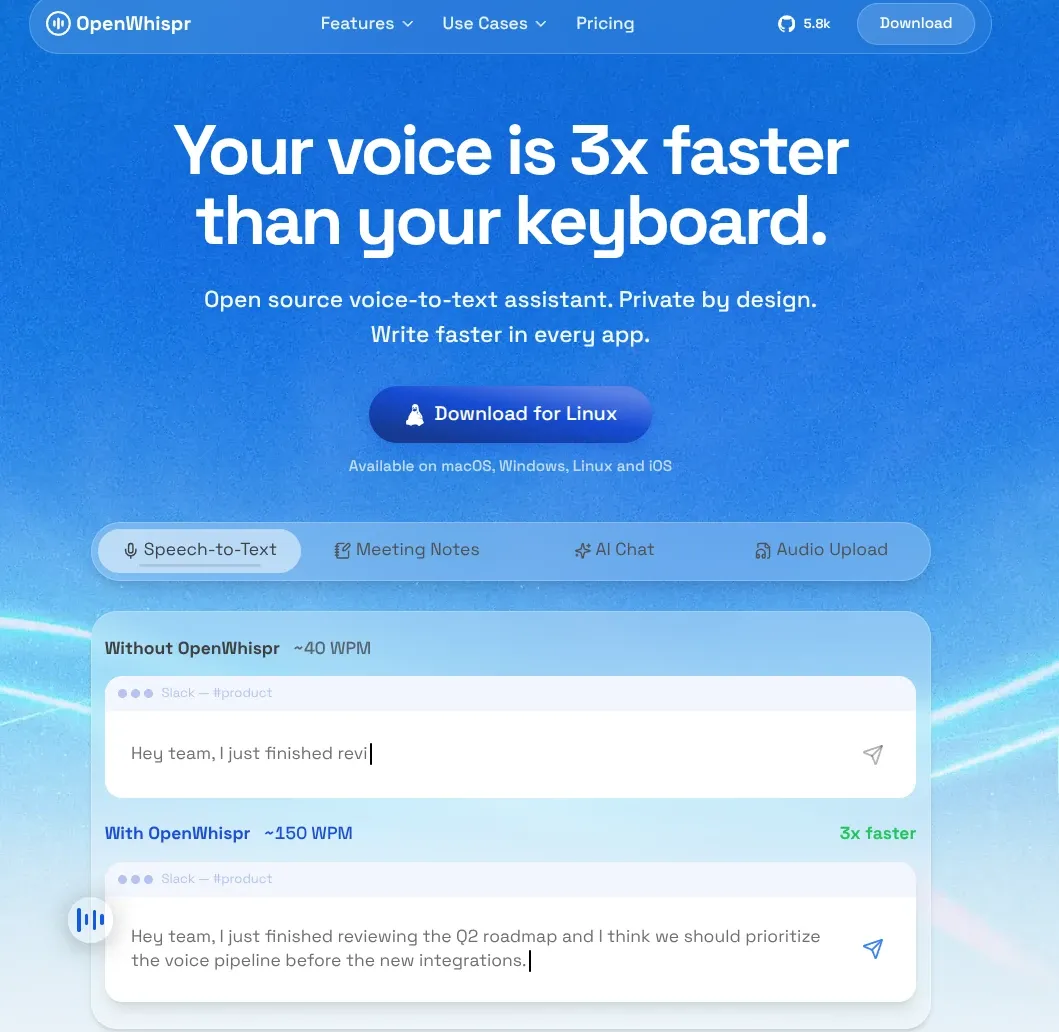
If you've ever wished you could just talk instead of type — and have your words show up perfectly formatted in whatever app you're using — that's exactly what OpenWhispr does. Here's everything a beginner needs to know before trying it.
What Is OpenWhispr?
OpenWhispr is a free, open-source dictation app for your computer. You hold down a hotkey, speak, and your words are transcribed and typed out wherever your cursor is — in Slack, Gmail, a code editor, ChatGPT, Notion, basically any app that accepts text.
A few things make it stand out from typical dictation tools:
- It's genuinely open source. The code is on GitHub under the MIT license, with thousands of stars and over 200 contributors, so anyone can inspect exactly what it does with your voice.
- Privacy is the default. You can run speech recognition entirely on your own machine, meaning your audio never has to leave your computer. Cloud transcription is optional, not required.
- It's more than dictation. Beyond typing what you say, OpenWhispr can clean up your phrasing with AI, transcribe meetings (Zoom, Teams, FaceTime) with speaker labels, take notes, and even act as a voice-controlled AI chat assistant.
- It works almost everywhere. It's available for macOS, Windows, Linux, and iOS, and supports over 100 languages with automatic language detection.
In short: think of it as an open-source alternative to paid dictation tools like Wispr Flow, but with the option to keep everything fully private and local.
How to Install OpenWhispr
You don't need any technical skills to get started — installation is similar to installing any other desktop app.
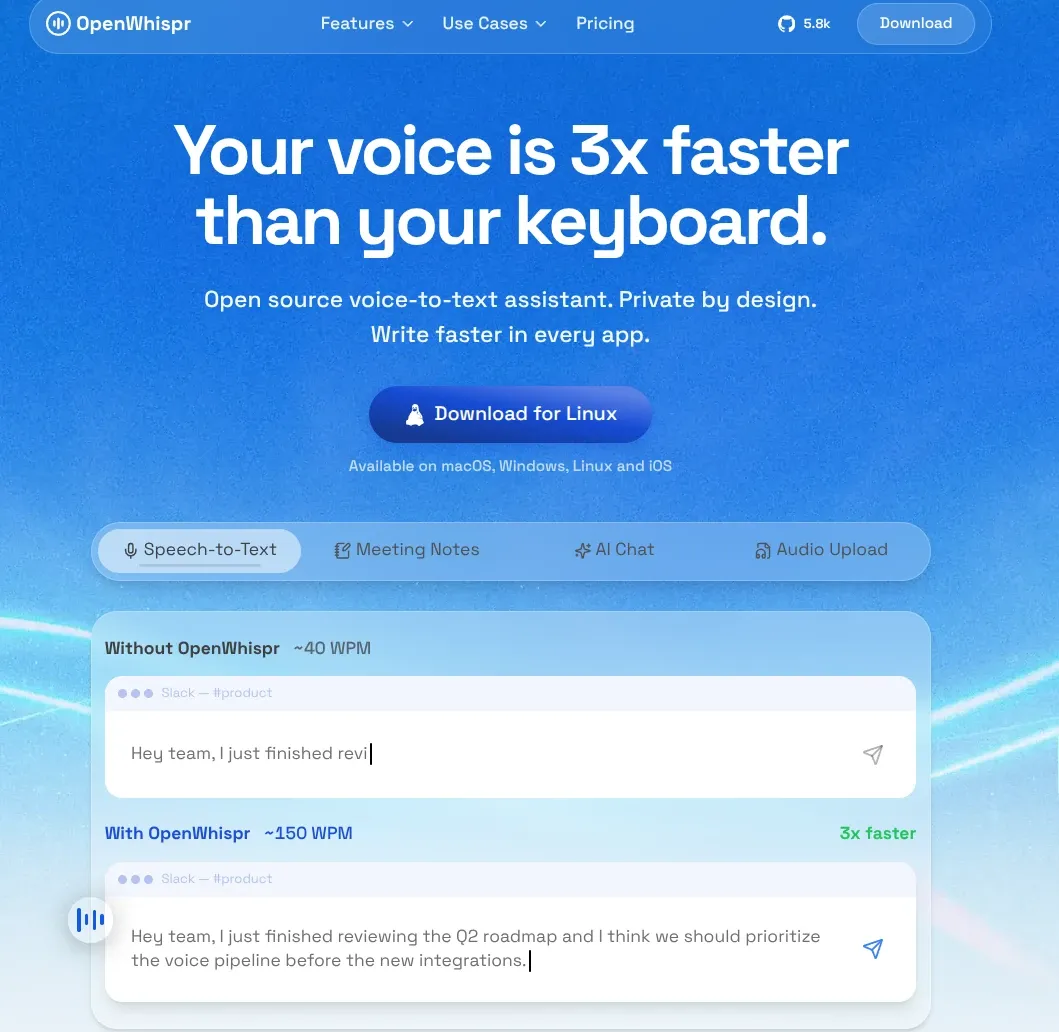
- Go to the download page. Visit openwhispr.com/download and pick the build for your operating system (macOS, Windows, or Linux). You can also grab installers from the GitHub releases page.
- Install the app:
- macOS: Download the
.dmgfile, open it, and drag OpenWhispr into your Applications folder. Since it's an independent open-source build, macOS may show a security warning the first time you open it — just right-click the app and choose "Open" to get past this. - Windows: Download and run the installer.
- Linux: Choose whichever package fits your distro — AppImage,
.deb,.rpm, or.tar.gzare all available.
- Grant permissions. On first launch, OpenWhispr will ask for microphone access (to hear you) and accessibility permissions (so it can type text into other apps). Approve both when prompted.
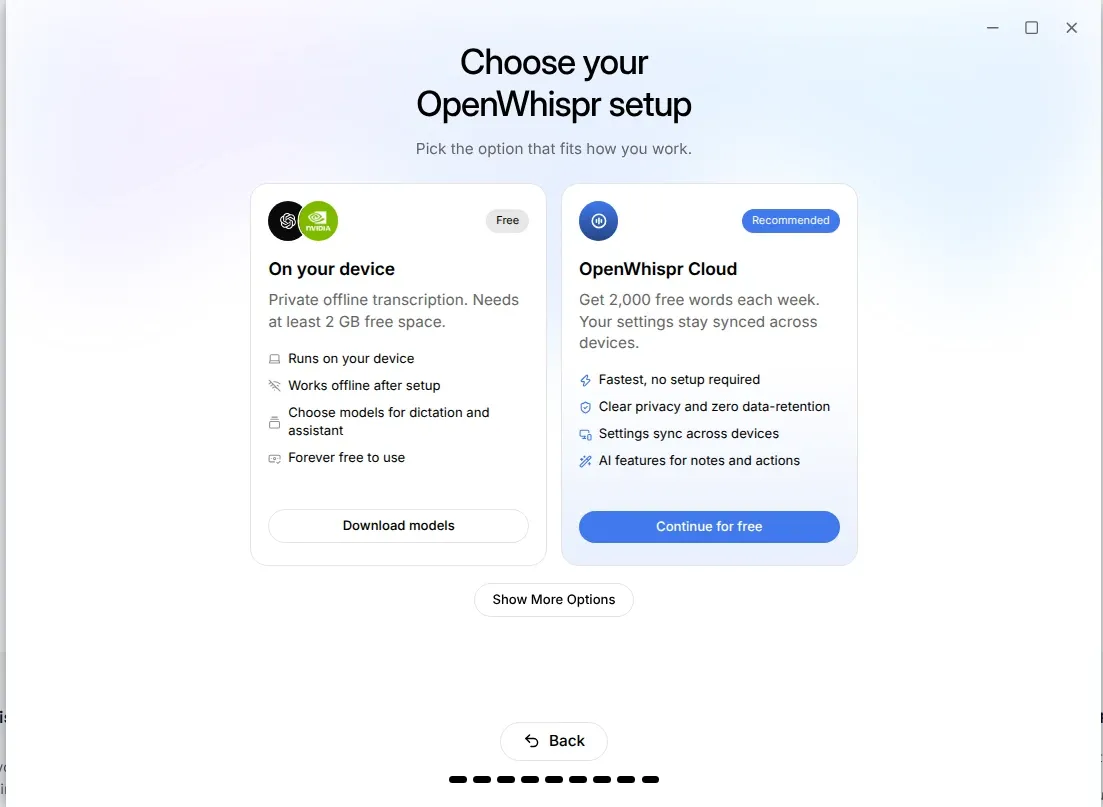
- Choose your hotkey and model. During setup, you'll pick a dictation hotkey and a speech-to-text model. If you're not sure, the recommended defaults work well for most people — you can always change them later.
- Start talking. Hold your hotkey, speak naturally, and release. Your words appear right where your cursor is.
If you're comfortable with code, you can also build it from source: git clone the GitHub repo, then run npm install and npm run dev (this requires Node.js 24 or newer).
What Models Are Available?
This is where OpenWhispr really shows its flexibility — you can choose how your speech gets turned into text, trading off privacy, speed, and accuracy.
Local models (run entirely on your device, 100% free):
- OpenAI Whisper (via whisper.cpp) — comes in several sizes so you can balance speed and accuracy:
- Tiny (75 MB) — fastest, basic quality
- Base (142 MB) — fast, good quality — this is the recommended starting point
- Small (466 MB) — balanced
- Medium (1.5 GB) — slower, high accuracy
- Large v3 (3 GB) — slowest, best accuracy
- Turbo (1.6 GB) — fast with good quality
- NVIDIA Parakeet TDT 0.6B v3 — a newer, highly accurate model (about 680 MB) that supports 25 languages and runs quickly even locally.
Cloud models (need your own API key — "bring your own key"):
- OpenAI — Whisper, GPT-4o Transcribe, and GPT-4o Mini Transcribe
- Groq — Whisper Large v3 Turbo, known for extremely fast cloud transcription
- Mistral — Voxtral Mini for multilingual transcription
- Custom endpoints — connect your own self-hosted Whisper server, Ollama, or any OpenAI-compatible service
OpenWhispr Cloud is also an option — the company's own managed transcription service. It needs no API key setup at all; you just sign in and it automatically routes your audio to a fast provider, with a free tier included.
On top of transcription, OpenWhispr can also clean up your text with AI (fixing grammar, removing "um"s, formatting it nicely). You can use cloud AI models like Claude, GPT, or Gemini with your own API key, or run local models like Qwen or Mistral entirely offline via llama.cpp.
How to Use OpenWhispr
Once it's installed, using OpenWhispr is mostly about pressing one key and talking.
- Dictate anywhere: Hold your chosen hotkey (often the default is something like
Fnor a custom shortcut), speak naturally, then release. Your words are transcribed and typed directly wherever your cursor is — an email, a chat app, a document, a code editor, anything that accepts text. - Let it clean up your speech: If you enable AI text processing, OpenWhispr automatically removes filler words ("um," "uh"), fixes grammar, and formats your sentences before they're inserted — so a rambling voice note comes out reading like polished writing.
- Give it voice commands: Instead of just dictating, you can say instructions like "clean this up" or "draft an email to Mike," and OpenWhispr will act on them rather than transcribing them literally.
- Capture meetings: Turn on meeting transcription during a Zoom, Teams, or FaceTime call, and it will auto-detect the call, transcribe it with speaker labels, and generate notes and action items afterward.
- Build your own dictionary: Add names, jargon, or technical terms it tends to mishear — it auto-learns from your corrections over time so accuracy improves the more you use it.
- Switch languages on the fly: With 100+ supported languages and auto-detection, you can even switch languages mid-conversation and it keeps up.
Pricing Plans
OpenWhispr's core promise is that local dictation is free forever — you never have to pay to use it privately and offline. Paid tiers exist for people who want cloud convenience or team features.
| Plan | Price | What you get |
|---|---|---|
| Free | $0 | Unlimited local models, 2,000 words/week of OpenWhispr Cloud transcription, 5 hours/month of meeting recordings, unlimited cloud transcription if you use your own API keys, 100+ languages, custom dictionary |
| Pro | ~$6.67/user/month (billed annually at $80/year) | Everything in Free, plus unlimited OpenWhispr Cloud transcription, 20 hours/month of meeting recordings, cross-device sync, personal API access, MCP integration, and the iPhone/iPad app |
| Business | ~$13.33/user/month (billed annually at $160/year) | Everything in Pro, plus unlimited meeting recordings, "agent mode," chat over your own data, and priority support |
| Enterprise | Custom pricing | Everything in Business, plus SSO/SAML, SCIM provisioning, audit logs, retention controls, and dedicated support |
Monthly billing is also available at a higher rate than the annual price shown above. Since it's open source, you can also self-host and use your own API keys indefinitely without ever paying OpenWhispr directly.
Conclusion
OpenWhispr is a solid pick if you want to type less and talk more — especially if privacy matters to you. Because it's open source and can run entirely offline, you're not forced to trust a company with your voice data the way you would with most commercial dictation apps. Beginners can get up and running in a few minutes with sensible defaults, while more advanced users get a genuinely deep toolbox: multiple transcription engines, AI cleanup, meeting notes, and even a voice-controlled AI assistant.
If you just want free, private dictation, the Free plan with a local Whisper or Parakeet model will likely cover everything you need. If you want cloud convenience, team features, or mobile access, the paid tiers are reasonably priced and scale up to full enterprise security controls.