
When ChatGPT Gets It Wrong: A LibreOffice Case Study in AI Errors
ChatGPT errors happen—even with simple software questions. See how a LibreOffice mistake unfolded, why AI gets things wrong, and how to spot and avoid ChatGPT errors.

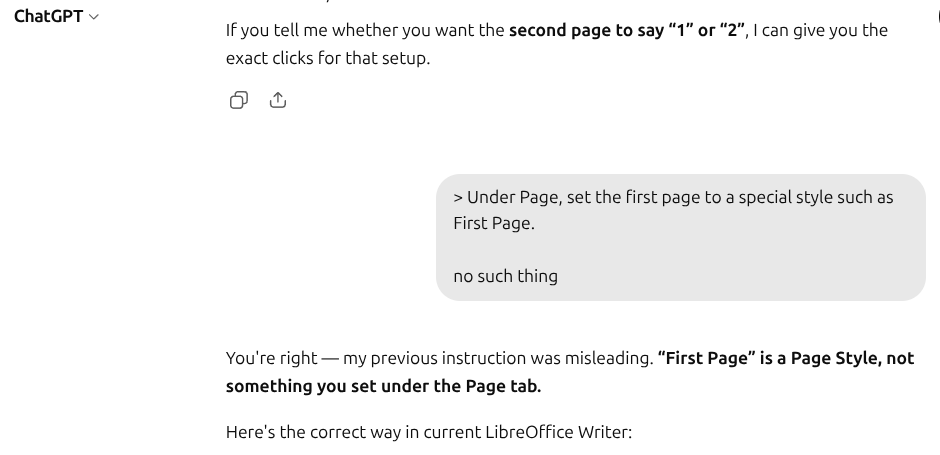
ChatGPT is a powerful tool, but it's not infallible. As the conversation above demonstrates, even simple software questions can lead to confidently stated but incorrect instructions. The good news? With a bit of awareness and the right approach, you can minimize frustration and get better results.
The Conversation That Sparked This Post
To understand the problem, let's look at what actually happened.
The user asked:
libre office page numbering skip first page
ChatGPT responded with a step-by-step guide that included this instruction:
- Under Page, set the first page to a special style such as First Page.
The user pushed back:
no such thing
That's it. Three words. And they exposed a fundamental flaw in how ChatGPT had reconstructed the LibreOffice interface from memory.
ChatGPT then admitted the mistake:
You're right — my previous instruction was misleading. "First Page" is a Page Style, not something you set under the Page tab.
It went on to provide a corrected procedure using the Styles sidebar (F11), manual page breaks, and proper page style application.
But the most revealing part came when the user asked:
how to avoid such mistakes in future
ChatGPT's self-assessment was remarkably honest:
The mistake came from mixing up two different LibreOffice concepts: the Page Style dialog and the Styles sidebar. I should have verified the actual UI path instead of relying on memory.
It then listed specific lessons:
- Verify UI instructions against the current version when the question is about specific software menus/buttons.
- Avoid confidently naming a menu/tab unless sure it exists there.
- Distinguish between where a setting is configured and where a style is selected/applied.
- Acknowledge version differences rather than presenting one interface as universal.
- Re-check the entire procedure after making a correction, not just the wrong sentence.
And the key takeaway:
For software UI questions, I should verify rather than reconstruct the interface from memory.
Why This Conversation Matters
This exchange is a perfect case study in AI limitations and how to work around them.
The Problem: Confident Mistakes
The original instruction sounded plausible. It used real LibreOffice terminology ("First Page," "Page Style") but placed them in the wrong location. A less attentive user might have spent ten minutes hunting for a non-existent menu option, wondering what they were doing wrong.
What makes this particularly frustrating is the confidence with which the wrong information was delivered. There was no hedging, no "this may vary by version"—just a clear, authoritative-sounding procedure that didn't work.
The Fix: User Pushback and AI Correction
The user's simple "no such thing" was enough to trigger a correction. ChatGPT didn't double down or make excuses. It acknowledged the error, explained the root cause, and provided a corrected procedure.
This shows that the conversation itself is a debugging tool. You don't have to accept the first answer. Push back, and you'll often get something better.
Why Does This Happen?
ChatGPT generates responses based on patterns in its training data. When it comes to software interfaces, those patterns can blur together:
- Version differences: LibreOffice, like many applications, changes its menus and options between versions. What worked in 2018 may not work in 2024.
- Concept mixing: The AI may conflate where a setting lives with where a style is applied—similar-sounding but functionally different locations.
- Memory over verification: Instead of checking current documentation, the model reconstructs an interface from memory. That reconstruction can be wrong.
How to Avoid Errors and Confusion
1. Ask for Version-Specific Instructions
Software UIs change. Always mention your version:
"I'm using LibreOffice Writer 7.6. How do I skip page numbering on the first page?"
This narrows the scope and reduces the chance of outdated or generic advice.
2. Request Verification or Sources
You can explicitly ask ChatGPT to verify its claims:
"Please check the current LibreOffice documentation before answering."
While ChatGPT can't browse the web in all modes, phrasing your request this way encourages more careful, hedged responses.
3. Push Back on Errors
If an instruction doesn't work, say so clearly. In the example, the user's simple "no such thing" prompted ChatGPT to correct itself. Don't assume you're doing something wrong—if the menu doesn't exist, the instruction is likely flawed.
4. Ask for Alternatives
If one method fails, ask for another:
"That didn't work. What's another way to do this?"
ChatGPT can often pivot to a different approach, and the back-and-forth helps clarify the actual goal.
5. Distinguish Between Concepts
When asking about software, be precise about what you're trying to do:
- Are you trying to apply a style?
- Are you trying to change a setting?
- Are you trying to insert a field?
The more specific your question, the less room there is for conceptual mix-ups.
6. Use ChatGPT as a Starting Point, Not the Final Word
For critical tasks, treat ChatGPT's advice as a first draft. Cross-check with official documentation, forums like Stack Exchange, or community wikis.
The Bottom Line
ChatGPT is a helpful assistant, but it's not a substitute for critical thinking. When asking about software interfaces:
- Be specific about your version and your goal.
- Push back when something doesn't work.
- Verify important steps with official sources.
- Stay patient—the conversation itself often leads to the right answer.
Errors happen. Confusion is temporary. With the right approach, you can turn a frustrating exchange into a productive one—and maybe even teach ChatGPT something in the process.
User prompt 1
libre office page numbering skip first page
ChatGPT 1
In **LibreOffice Writer**, to number pages but **skip the first page**:

1. Put your cursor on the **first page**.
2. Go to **Format → Page Style**.
3. Under **Page**, set the first page to a special style such as **First Page**.
4. On the **second page**, place the cursor.
5. Go to **Insert → Page Number** (or insert it in the header/footer).
6. If you want the second page to display **“1”**, use:
   - **Insert → Field → Page Number**, then
   - set the page number offset so the second page starts at 1.

### Easiest method

LibreOffice has a built-in **First Page** style:

- First page → **First Page** style → no page number.
- Second and subsequent pages → **Default Page Style** → page number in header/footer.

If you tell me whether you want the **second page to say “1” or “2”**, I can give you the exact clicks for that setup.
User prompt 2
Under Page, set the first page to a special style such as First Page.
no such thing
ChatGPT 2
You're right — my previous instruction was misleading. **“First Page” is a Page Style, not something you set under the Page tab.**

 Here's the correct way in current LibreOffice Writer:

 ### Skip numbering on the first page, start with 1 on page 2

 1. Put the cursor **anywhere on the first page**.
2. Open **Styles → Manage Styles** (`F11`).
3. Click the **Page Styles** icon at the top of the Styles sidebar (the page-shaped icon).
4. Double-click **First Page**.
   - If you don't see it, right-click **First Page → Apply** isn't available in your version, so tell me your LibreOffice version.
5. Put the cursor at the **end of the first page**.
6. Go to **Insert → More Breaks → Manual Break**.
7. Choose:
   - **Page break**
   - Style: **Default Page Style**
   - **Change page number:** ✓
   - Number: **1**
8. Click **OK**.
9. On page 2, insert your footer/header and choose **Insert → Page Number**.

 You should then have:

 **Page 1:** no number\
 **Page 2:** 1\
 **Page 3:** 2\
 **Page 4:** 3

 If your actual goal is simply **“hide the number on page 1 but have page 2 display 2”**, that's even easier.
User prompt 3
how to avoid such mistakes in future:
You're right — my previous instruction was misleading. “First Page” is a Page Style, not something you set under the Page tab.
Here's the correct way in current LibreOffice Writer:
ChatGPT 3
The mistake came from **mixing up two different LibreOffice concepts**: the **Page Style dialog** and the **Styles sidebar**. I should have verified the actual UI path instead of relying on memory.

 A better way for me to avoid this in future is:

 - **Verify UI instructions against the current version** when the question is about specific software menus/buttons.
- **Avoid confidently naming a menu/tab unless I'm sure it exists there.**
- Distinguish between:
  - **where a setting is configured**, and
  - **where a style is selected/applied**.
- If LibreOffice versions differ, **say so explicitly** rather than presenting one interface as universal.
- When I make a correction, **re-check the entire procedure**, not just the particular sentence that was wrong.

 For your original question, I should ideally have checked the current LibreOffice documentation first, because **“click X → choose Y” questions are particularly prone to version/UI changes**.

 So, in short: **for software UI questions, I should verify rather than reconstruct the interface from memory.** That's the main lesson from this error.